

March 21, 2026
•
16
min read

How Does Cursor's AI-Powered Autocomplete Feature Work? The Complete 2026 Guide
Learn how Cursor’s AI-powered autocomplete works in 2026. Explore predictive coding, context awareness, benefits, limitations, and real developer use cases.
Here's a number that might surprise you. Cursor Tab handles over 400 million requests every single day. That's not a typo. While you're reading this sentence, thousands of developers just pressed Tab to accept AI-generated code suggestions.
But what makes Cursor AI autocomplete different from the code completion you've used for years? The answer goes beyond faster suggestions. Cursor Tab doesn't just predict what you'll type next. It predicts what you'll edit, where you'll move your cursor, and which files you'll need to change. This transforms Cursor AI autocomplete from a typing assistant into a genuine coding partner.
This guide explains exactly how Cursor's tab completion works under the hood. You'll discover how Cursor AI autocomplete differs from traditional code completion, learn the technical foundations powering the Tab model, and find configuration tips that boost suggestion quality. Whether you're evaluating Cursor or already using it daily, understanding how Cursor autocomplete works will help you code faster and smarter.
TL;DR: Cursor AI Autocomplete in 60 Seconds
- What it is: Cursor Tab is an AI-powered code completion feature that predicts your next action, not just your next characters. It handles 400+ million requests daily.
- Key difference from Copilot: Cursor can edit existing code (not just insert new code), predict where your cursor should move next, and suggest changes across multiple files.
- How it works: A custom-trained Tab model analyzes your entire codebase using a 272,000-token context window. It considers your current file, open tabs, recent edits, and project structure.
- Continuous improvement: Cursor uses online reinforcement learning, rolling out model updates multiple times per day. The latest model makes 21% fewer suggestions with 28% higher acceptance rates.
- Best tip for better suggestions: Write clear comments before functions, use type hints, and keep related files open in tabs. Create a
.cursorrulesfile for project-specific guidance. - Pricing: Free plan offers ~2,000 completions/month. Pro ($20/month) provides unlimited completions.
What Is Cursor Tab? Understanding AI-Powered Code Completion
Cursor Tab is the inline AI autocomplete feature built into the Cursor editor. Unlike traditional code completion that suggests variable names or function signatures, Cursor AI autocomplete predicts and generates entire code blocks based on your project context.
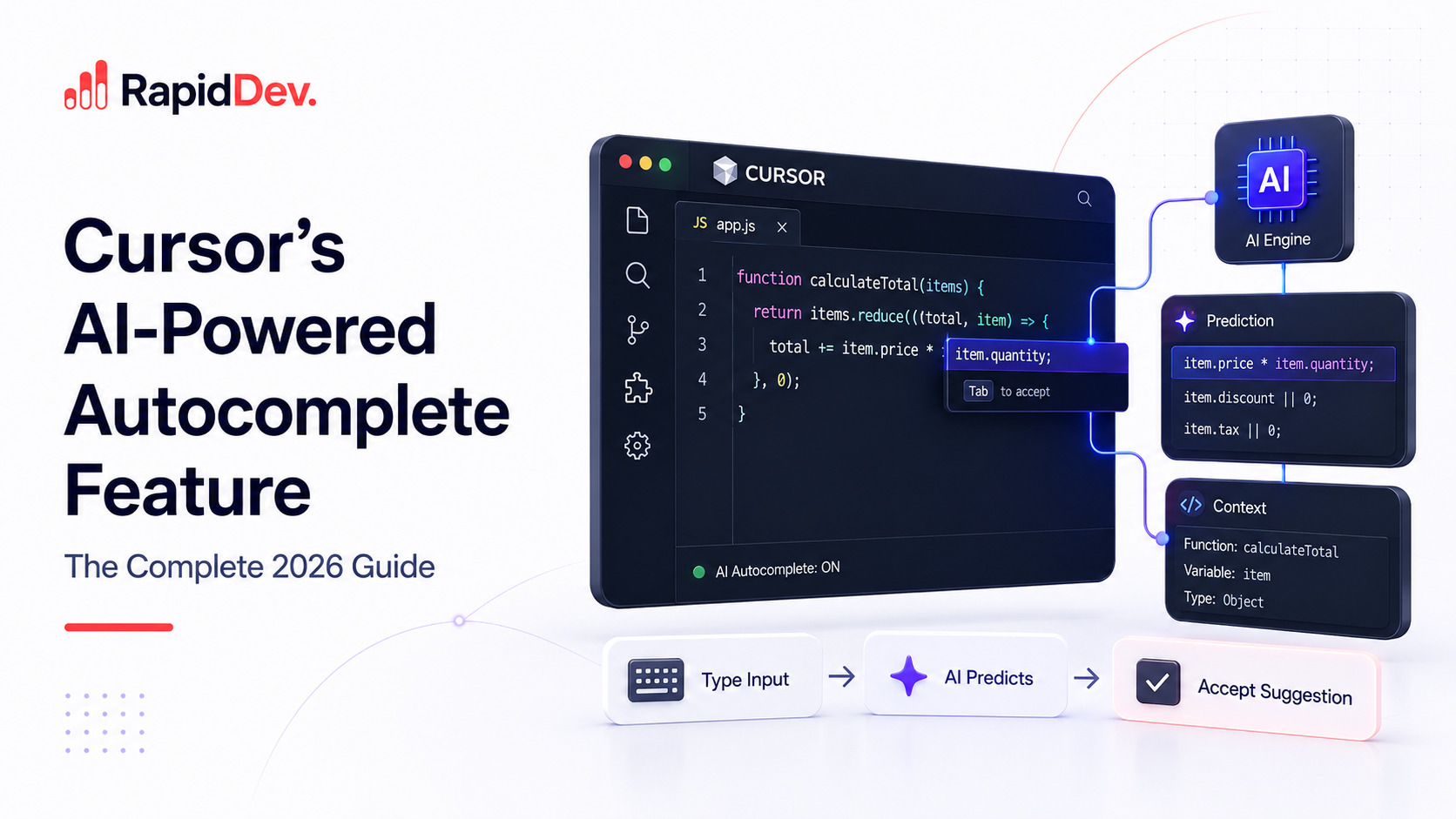
The concept is simple yet powerful. As you type, Cursor analyzes your code and displays predictions as semi-transparent "ghost text." Press Tab to accept the suggestion. Press Escape to dismiss it. This workflow has earned the nickname "tab coding" among developers who've embraced it.
However, Cursor Tab goes far beyond basic autocomplete in three important ways.
First, it handles multi-line completions. Start writing a function, and Cursor might suggest the entire implementation. This works especially well for boilerplate code, common patterns, and repetitive structures.
Second, it can modify existing code. This is the biggest difference from GitHub Copilot. When Cursor suggests changes to existing lines, it shows a diff popup to the right of your cursor. You'll see exactly what gets added, modified, or removed before accepting.
Third, it predicts where your cursor should move next. After you accept a suggestion, pressing Tab again might jump you to the next logical edit location. Changed a function parameter? Cursor can guide you through updating every call site across multiple files.
These capabilities work together to eliminate what the Cursor team calls "zero-entropy" work. Once you express your intent, Cursor handles the predictable parts automatically.
How Cursor Tab Completion Compares to Copilot and Traditional Autocomplete
Before diving deeper into how Cursor autocomplete works, let's see how Cursor's code completion stacks up against alternatives.
The standout difference is edit prediction. Copilot adds code at your cursor position. Cursor can rewrite the line you're on, fix typos, update variable names, and modify function signatures. This makes refactoring significantly faster.
Additionally, Cursor's latency advantage comes from its specialized architecture. The Tab model was purpose-built for code completion, not adapted from a general-purpose language model.
How Cursor AI Autocomplete Works: The Technical Foundation
Understanding the technology behind Cursor Tab helps you use it more effectively. The Cursor Tab model combines several advanced techniques to deliver fast, accurate code completion. Let's break down the key components.
The Custom Tab Model
Cursor doesn't use GPT-4 or Claude for Tab suggestions. Instead, the company developed a proprietary model optimized specifically for code completion.
This model uses a Sparse Mixture of Experts (MoE) architecture. In simple terms, different parts of the model activate for different types of predictions. This design excels at processing large amounts of context while generating precise, small outputs. It's exactly what code completion needs.
The model is also "pre-filled token hungry." It can ingest thousands of lines of your existing code but generates only the specific changes you need. This efficiency keeps suggestions fast and relevant.
Codebase Indexing and Context Gathering
When you open a project, Cursor indexes your entire codebase in the background. It breaks your code into semantic chunks and creates vector embeddings that capture meaning, not just syntax.
This indexing enables a 272,000-token context window. For comparison, that's roughly equivalent to understanding 50,000 or more lines of code simultaneously. When you're editing a file, Cursor considers your current file, open tabs, recent edits, and relevant code from across your project.
The result is suggestions that understand your architecture, naming conventions, and coding patterns. Cursor knows that your UserService class exists in another file and can suggest the correct import automatically.
The Prediction Pipeline
Every keystroke triggers a sophisticated pipeline. Here's what happens in those 200-400 milliseconds.
First, Cursor gathers context from your current position, recent changes, and project structure. This context is encrypted locally before transmission.
Next, the encrypted context travels to Cursor's backend servers. The backend decrypts the information and runs it through the Tab model.
Then, the model generates a prediction. If confidence is high enough, the suggestion returns to your editor.
Finally, Cursor displays the suggestion as ghost text or a diff popup. You decide whether to accept with Tab or reject with Escape.
Even file names are obfuscated during this process. Cursor designed the pipeline with privacy in mind from the start.
How Cursor Improves Tab Through Reinforcement Learning
Most AI tools train on static datasets and release updates every few months. Cursor AI autocomplete takes a radically different approach that keeps it ahead of competitors.
With 400 million daily requests, Cursor has massive amounts of data about which suggestions developers accept and which they reject. The company uses this signal for continuous improvement through online reinforcement learning.
Here's how it works. Every time you accept or reject a suggestion, that feedback helps train the model. Cursor uses policy gradient methods to optimize for higher acceptance rates. The model learns not just what code to suggest, but when to suggest and when to stay quiet.
This matters because noisy suggestions disrupt your flow. If the model suggests too often with low accuracy, it becomes annoying rather than helpful. Cursor trained its model to avoid this problem.
The results are impressive. In September 2025, Cursor released an updated Tab model that makes 21% fewer suggestions while achieving a 28% higher acceptance rate. Fewer interruptions, better predictions.
Even more remarkably, Cursor rolls out new model checkpoints multiple times per day. The typical cycle takes just 1.5 to 2 hours from collecting data to deploying improvements. This rapid iteration keeps Cursor ahead of competitors who update quarterly.
Key Features That Set Cursor Code Completion Apart
Now that you understand the foundation of how Cursor AI autocomplete works, let's explore the specific capabilities that make Cursor Tab so effective.
Multi-Line Code Completion
Traditional autocomplete finishes the current line. Cursor Tab predicts entire code blocks.
Start typing a function definition and add a comment describing what it should do. Cursor will often suggest the complete implementation. This works particularly well for common patterns like API endpoints, database queries, and data transformations.
For example, type this comment and function signature in Python:
python
# Calculate compound interest with monthly compounding
def calculate_interest(principal, rate, years):
Cursor Tab will likely suggest the entire mathematical implementation, including the formula and return statement. Accept it with a single Tab press.
Code Editing Beyond Simple Insertion
This feature truly differentiates Cursor from Copilot. Cursor Tab can modify existing code, not just add new code.
When a suggestion involves changes to existing lines, Cursor shows a diff popup to the right of your cursor. Red highlights indicate deletions. Green highlights show additions. You see exactly what changes before committing.
Consider this practical scenario. You type const userNmae = "Alice"; and your linter flags the typo. Cursor Tab recognizes the error and suggests the fix. Accept with Tab, and userNmae becomes userName automatically.
This capability extends to larger refactors. Change a function's parameter, and Cursor might suggest updating the implementation to use the new parameter throughout.
Cursor Prediction: Your Next Edit Location
After accepting a suggestion, press Tab again. Cursor might jump you to the next logical edit location.
This creates a "tab-tab-tab" workflow for multi-step changes. Rename a function in one file, and Cursor guides you through updating every call site. A portal window appears at the bottom of your editor when cross-file jumps are suggested.
The feature shines during refactoring. Instead of manually searching for usages, you flow through changes by repeatedly pressing Tab. Each stop is a place that likely needs attention.
Automatic Import Handling
For TypeScript and Python projects, Cursor Tab adds missing imports automatically.
Reference a method from another file, and Cursor suggests the code along with the required import statement. Accept the suggestion, and both the code and import appear in the right places.
This eliminates the context switch of scrolling to the top of your file, adding an import, and returning to where you were working. Everything happens in one Tab press.
Awareness of Linter Errors and Recent Edits
Cursor Tab doesn't operate in isolation. It considers your linter feedback and recent changes when generating suggestions.
If ESLint flags a potential issue, Cursor might proactively suggest a fix. If you just changed a variable name in one place, Cursor anticipates you'll want to update other occurrences.
This context awareness makes suggestions feel almost telepathic. Cursor seems to know what you're trying to accomplish, not just what you've typed.
How to Configure Cursor Tab Completion for Optimal Performance
Getting the most from Cursor's AI autocomplete requires some setup. Proper Cursor Tab settings dramatically improve your experience. Here's how to configure it effectively.
Enabling and Toggling Cursor Tab
Cursor Tab is enabled by default. Check the status bar at the bottom right of your editor to verify. The Cursor Tab indicator shows whether suggestions are active.
To toggle Tab on or off, click the status bar indicator. Alternatively, use the command palette with Cmd+Shift+P (Mac) or Ctrl+Shift+P (Windows) and search for "Cursor Tab: Toggle."
For permanent settings changes, navigate to Cursor Settings, then Features, then Cursor Tab.
Essential Keyboard Shortcuts
Master these shortcuts to work efficiently with Tab suggestions.
ActionMacWindows/LinuxAccept full suggestionTabTabReject suggestionEscEscAccept word-by-wordCmd + →Ctrl + →Force hide suggestionKeep typing or EscKeep typing or Esc
Partial acceptance deserves special attention. When a suggestion is mostly correct but needs tweaking, accept it word by word using Cmd+Right Arrow. Take the good parts, then type your modifications.
You can customize these shortcuts in Cursor's Keyboard Shortcuts settings. Search for "Accept Cursor Tab Suggestions" to remap keys.
Configuration Options Worth Adjusting
Several settings fine-tune Tab behavior to match your preferences.
Suggestion delay controls how long Cursor waits after you stop typing before showing suggestions. Shorter delays feel more responsive but might seem intrusive. Experiment to find your preference.
Enable in comments determines whether Tab suggests completions inside code comments. Disable this if you find it distracting while writing documentation.
Partial acceptance enables the word-by-word acceptance feature. Turn this on under Cursor Settings, then Features, then Cursor Tab.
Using .cursorrules for Project-Specific Guidance
Create a .cursorrules file in your project root to guide Tab suggestions for your specific codebase.
Here's an example for a Python FastAPI project:
You are working on a Python FastAPI project.
- Always use async/await for database operations.
- Use Pydantic v2 model_validator instead of root_validator.
- Follow the repository pattern for database access.
- Use HTTPException for error responses, never return raw dicts.
- All API responses should use response models defined in schemas/.
Cursor reads this file and incorporates its guidance into Tab suggestions. Your team's conventions become part of the AI's context.
Cursor Autocomplete Tips: How to Get Better Suggestions
The quality of Cursor Tab completion suggestions depends heavily on the context you provide. These proven techniques significantly improve results and help you understand how Cursor autocomplete works best.
Write Clear Comments Before Functions
Comments serve as strong signals for what Cursor should generate. Before writing a function, describe its purpose in a comment.
python
# Fetch user orders from the database, filter by status,
# and return them sorted by creation date descending
def get_user_orders(user_id: str, status: str = None):
    # Cursor Tab will generate the implementation here
Cursor interprets your comment and suggests code that matches your description. The more specific your comment, the better the suggestion.
Use Type Hints and Function Signatures
Explicit types give Cursor strong signals about expected inputs and outputs. This is especially valuable in TypeScript and Python.
typescript
interface UserProfile {
  id: string;
  name: string;
  email: string;
  createdAt: Date;
}

function updateUserProfile(
  userId: string,
  updates: Partial<UserProfile>
): Promise<UserProfile> {
  // Well-typed signature leads to better completions
}
When Cursor knows the types involved, it generates suggestions that respect those constraints.
Keep Related Files Open in Tabs
Cursor considers open tabs when generating suggestions. If you're writing a controller, keep the related model and service files open.
This provides additional context about your data structures, available methods, and coding patterns. Cursor uses this information to suggest code that integrates properly with existing components.
Establish Patterns Early in Files
Cursor learns from patterns within the current file. Write the first instance of a repeated structure manually, then let Tab replicate it.
For example, write one complete API route handler with error handling, logging, and validation. When you start the next handler, Cursor will follow the same pattern automatically.
Leverage Tab for Repetitive Transformations
Need to add error handling to multiple functions? Make the change manually in one place. Move to the next function, and Cursor often suggests the same transformation.
This works well for adding logging statements, updating API calls, converting class components to functional components, and similar repetitive tasks.
Understanding Cursor AI Autocomplete Pricing and Plans
Cursor offers three tiers with different Tab completion allowances. Understanding these options helps you choose the right plan for your needs.
The Hobby plan is free and includes approximately 2,000 Tab completions per month. This works for casual users or those evaluating Cursor. After reaching the limit, completions pause until the next billing cycle.
The Pro plan costs $20 per month and provides unlimited Tab completions. For developers coding daily, this tier makes sense. If Tab saves you 30 minutes per day, the subscription pays for itself many times over.
The Business plan runs $40 per user per month. It includes unlimited completions plus team features like centralized billing, admin controls, and usage analytics.
PlanTab CompletionsPriceHobby (Free)~2,000/month$0ProUnlimited$20/monthBusinessUnlimited + admin features$40/user/month
Most professional developers find Pro sufficient. Business makes sense for teams wanting centralized management.
Cursor Tab vs Chat vs Composer: When to Use Each Tool
Cursor offers multiple AI features beyond Tab. Knowing when to use each maximizes your productivity.
Use Cursor Tab when you know what you want and just need the code written faster. Tab excels at completing functions you've started, following established patterns, making small inline edits, and generating boilerplate.
Use Cursor Chat (Cmd+L) when you need help figuring out the approach. Chat works well for asking questions, getting code explanations, exploring implementation options, and learning unfamiliar APIs.
Use Composer when making complex multi-file changes. Composer handles large refactors, feature implementations spanning many files, and coordinated updates across your codebase.
TaskRecommended ToolComplete a function you startedTabWrite boilerplate following a patternTabFix a small typo or errorTabUnderstand how code worksChatDesign a new featureChatRefactor across multiple filesComposerImplement a complex new capabilityComposer
Tab keeps you in flow state. Chat and Composer require stepping back to think and communicate. Choose based on whether you need execution speed or deliberation.
Privacy and Security: How Cursor AI Autocomplete Handles Your Code
Developers rightfully care about where their code goes. Cursor addresses these concerns through multiple mechanisms that protect your intellectual property.
Privacy Mode processes everything locally without sending code to external servers. Enable this for sensitive projects where data must stay on your machine.
Even without Privacy Mode, Cursor doesn't use your code to train models. The company has clear policies preventing customer code from entering training datasets.
During normal operation, context is encrypted locally before transmission. The backend decrypts, processes, and returns suggestions. File names and identifiers are obfuscated throughout.
Cursor holds SOC 2 Type II certification, demonstrating compliance with security standards. Enterprise customers can access self-hosted deployment options for maximum control.
For most developers, Cursor's default settings provide adequate security. For regulated industries or particularly sensitive codebases, Privacy Mode and enterprise options add extra protection.
Troubleshooting Common Cursor AI Autocomplete Issues
Sometimes Tab doesn't work as expected. Here's how to diagnose and fix common problems with Cursor Tab completion.
Suggestions Not Appearing
First, check that Cursor Tab is enabled. Look at the status bar indicator in the bottom right corner.
Next, verify your internet connection. Cursor Tab requires server communication and won't work offline.
Then, confirm your subscription status. Free tier users have monthly limits. Check your usage in account settings.
Finally, try restarting Cursor. Occasional glitches resolve with a fresh start.
Low Quality Suggestions
Open relevant files in other tabs to provide more context. Cursor considers open tabs when generating suggestions.
Add comments and type hints to guide the model. Explicit context leads to better predictions.
Check your .cursorrules file for conflicting or confusing instructions.
Verify the correct language mode is set for your file. Check the language indicator in the bottom right corner.
High Latency Issues
Check your network connection first. Slow internet directly impacts suggestion speed.
If you're using a VPN, try disconnecting temporarily. Some VPNs add significant latency to API calls.
Close unnecessary applications to free system resources.
For very large codebases, initial indexing may cause temporary slowness. Wait for indexing to complete.
Frequently Asked Questions About Cursor AI Autocomplete
How does Cursor AI predict my next code edit?
Cursor uses a custom machine learning model trained specifically for code completion. The model analyzes your current file, open tabs, recent edits, and project structure. It then predicts not just what you'll type, but what changes you'll make to existing code and where you'll move your cursor next.
Is Cursor Tab better than GitHub Copilot?
They excel in different areas. Cursor Tab offers faster response times, code editing capabilities (not just insertion), and cursor prediction features. Copilot integrates with more IDEs and costs less. For developers wanting the most advanced AI autocomplete, Cursor currently leads. For those prioritizing cost or specific IDE support, Copilot remains strong.
Does Cursor Tab work offline?
No. Cursor Tab requires an internet connection because suggestions are generated by server-side models. The processing is too computationally intensive for local execution on most developer machines.
How accurate is Cursor's autocomplete?
Cursor reports that developers accept approximately 30% of suggested characters. The company's September 2025 model update achieved a 28% higher acceptance rate while making 21% fewer suggestions. Accuracy varies by project type, with well-typed codebases generally seeing better results.
Can Cursor autocomplete entire functions?
Yes. Cursor Tab can predict and generate complete function implementations. This works especially well when you provide clear comments describing the function's purpose, use explicit type hints, and follow consistent patterns in your codebase.
Does Cursor learn my coding style?
Cursor learns from patterns within your current session and project. It also improves globally through reinforcement learning based on aggregate user feedback. However, it doesn't create a persistent profile of your individual preferences across different projects.
Is my code safe when using Cursor Tab?
Cursor encrypts code before transmission, doesn't use customer code for model training, and holds SOC 2 Type II certification. Privacy Mode keeps all processing local for maximum security. Enterprise options include self-hosted deployment for complete control.
How do I get better suggestions from Cursor Tab?
Write clear comments before functions, use explicit type hints, keep related files open in tabs, establish patterns early in files, and create a .cursorrules file with project-specific guidance. These techniques significantly improve suggestion quality.
What's the difference between Cursor Tab and Cursor Chat?
Tab provides inline code completion as you type. Chat opens a sidebar for conversational interaction. Use Tab for quick completions and edits. Use Chat for questions, explanations, and exploring implementation approaches.
Is Cursor Tab free or do I need a paid plan?
The free Hobby plan includes approximately 2,000 Tab completions monthly. For unlimited completions, upgrade to Pro at $20 per month. Business plans at $40 per user add team management features.
Conclusion
Cursor AI autocomplete represents a genuine leap beyond traditional code completion. By predicting edits rather than just insertions, anticipating cursor movements, and continuously improving through reinforcement learning, Cursor Tab completion transforms how developers write code.
The technical foundation matters. The custom Cursor Tab model, combined with a 272,000-token context window and codebase indexing, enables suggestions that understand your entire project. The 400 million daily requests provide training signal that competitors can't match.
However, getting maximum value requires investment. Configure your settings properly. Write clear comments and type hints. Keep relevant files open. Create project-specific rules. These practices dramatically improve suggestion quality.
Looking ahead, Cursor aims to extend Tab beyond code editing. Future versions may predict terminal commands, suggest documentation, and guide you through increasingly complex workflows. The goal is eliminating all predictable work so you can focus on creative problem-solving.
Start with the tips in this guide. Track how much time Tab saves you. Most developers find that once they experience effective AI autocomplete, coding without it feels frustratingly slow.
Ready to Maximize Your Team's AI Coding Productivity?
RapidDev helps development teams integrate AI-powered tools like Cursor effectively. Whether you're evaluating Cursor for your organization or looking to optimize existing workflows, our experts guide successful implementation.
Our services include hands-on training that accelerates learning curves for developers at all skill levels. We develop custom .cursorrules files tailored to your codebase conventions and architectural patterns. Our team configuration ensures consistent AI assistance across your entire organization.
Don't let your team struggle through the learning curve alone. RapidDev's experience with AI coding tools helps you reach productivity gains faster while avoiding common pitfalls.
[Contact RapidDev today for a free consultation on accelerating your development with Cursor and AI-powered tools.]