

September 17, 2025
•
min read

Can Replit Build WordPress Plugins? The Complete Guide for 2025
Thinking about using Replit to build a WordPress plugin? This guide explains where Replit shines, where it falls short, and how to set up a smooth dev-and-test workflow.
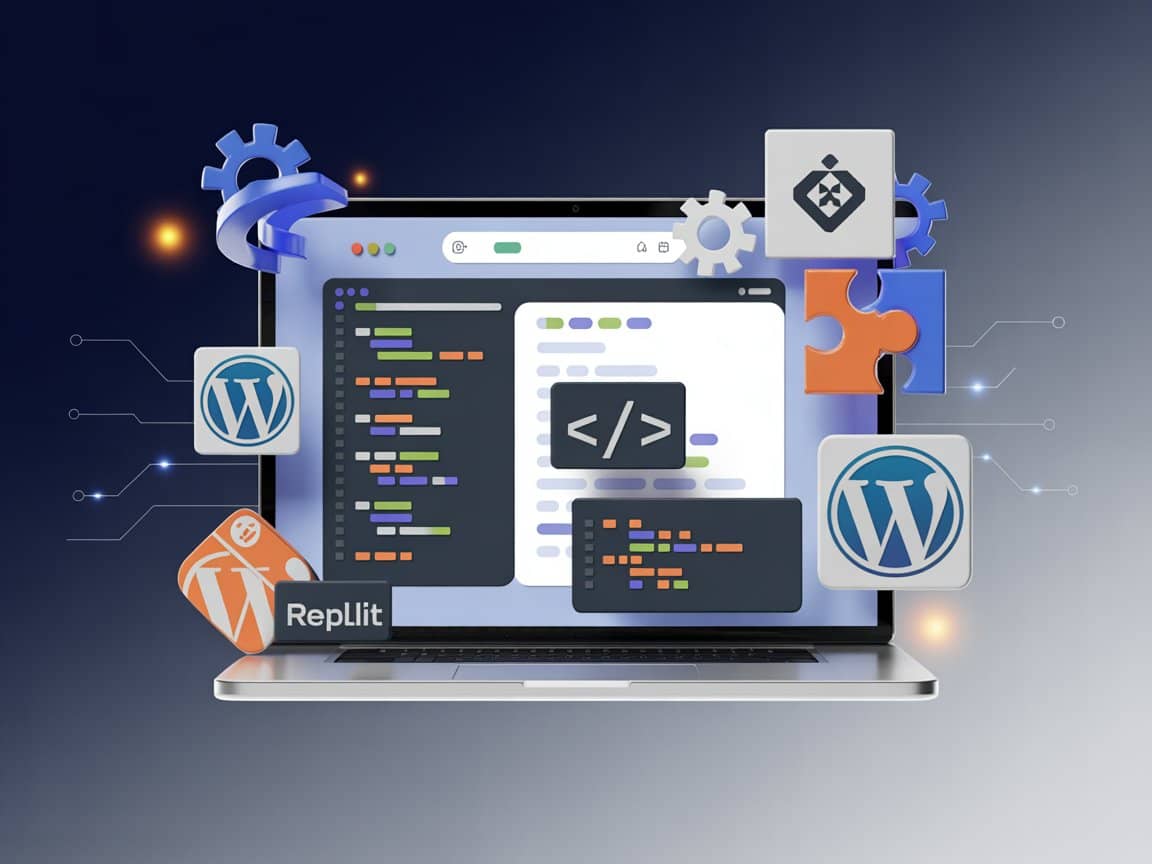
Can Replit build WordPress plugins? This question comes up frequently among developers exploring cloud-based coding tools. The short answer is yes, but with important limitations you need to understand. Replit works excellently as a coding workspace for writing plugin code. However, it cannot run a full WordPress environment for testing.
This guide explains everything about Replit WordPress plugin development. You will learn what Replit can do, what it cannot do, and the best workflow to follow. Whether you are a beginner or experienced developer, this article provides practical steps to get started.
Quick Answer: Can Replit Build a WordPress Plugin?
sYes, you can use Replit to build WordPress plugin code. Replit PHP support makes this possible since PHP powers all WordPress plugins. You can write, organize, and collaborate on plugin files directly in your browser. However, Replit cannot replace your WordPress testing environment.
Here is what Replit handles versus what requires WordPress:
Think of Replit as your plugin workshop. WordPress remains the factory where your plugin actually runs. This distinction matters because many developers expect Replit to handle the entire process. Understanding these boundaries helps you create an effective development workflow.
What Is Replit and Why Consider It for WordPress?
Replit is a browser-based integrated development environment. It lets you write, run, and share code without installing software locally. The platform supports over fifty programming languages, including PHP for WordPress development.
Several features make Replit attractive for plugin coding. First, you get instant access from any device with internet. Second, multiple developers can edit the same project simultaneously. Third, GitHub integration comes built in for version control. Finally, cloud storage keeps your work safe and accessible. The Replit PHP environment handles WordPress coding patterns smoothly.
Many WordPress developers explore Replit because it eliminates local setup hassles. You skip installing XAMPP, MAMP, or other server software. For quick prototyping and team collaboration, this convenience proves valuable. The platform works especially well when learning PHP basics or sharing code with clients.
However, Replit serves as a coding tool rather than a WordPress host. This limitation shapes how you should use it for plugin development. The platform excels at the writing phase but requires external testing environments.
How WordPress Plugins Work: Essential Background
Before diving deeper into Replit, understanding WordPress plugin structure helps tremendously. A plugin is essentially a PHP code package that extends WordPress functionality. Plugins can add features, modify behavior, or integrate external services.
Every WordPress plugin contains three core elements. First, a main PHP file with header comments identifies the plugin. WordPress reads this header to display plugin information in the admin panel. Without proper headers, WordPress cannot recognize your plugin.
Second, plugins use hooks to interact with WordPress. Actions let your code run at specific points during execution. Filters modify data before WordPress displays or saves it. These hooks form the foundation of plugin functionality.
Third, many plugins include additional assets. CSS files style the plugin interface. JavaScript adds interactive features. Template files create custom displays. All these files live together in the plugin folder.
Plugins reside in the wp-content/plugins directory of WordPress installations. Each plugin gets its own folder containing all related files. When activated, WordPress loads the plugin and executes its code.
This structure matters for Replit development because you can create these files anywhere. The code itself does not require WordPress to write. However, testing hooks, database operations, and admin integrations absolutely requires a running WordPress site.
What Replit CAN Do for WordPress Plugin Development
.jpg)
Replit offers several genuine advantages for the Replit WordPress plugin coding phase. Understanding these capabilities helps you maximize the platform's value.
Write Complete PHP Plugin Code
Replit provides full PHP support with syntax highlighting and error detection. You can write action hooks, filter functions, shortcodes, and admin pages. The code editor handles all WordPress coding patterns without issues. Complex PHP logic works just as well as simple functions.
Organize Your Plugin File Structure
Creating proper folder organization happens easily in Replit. You can set up the main plugin file alongside CSS, JavaScript, and template directories. The file browser lets you manage multiple files cleanly. This organization transfers directly to WordPress when you export.
Collaborate with Team Members in Real Time
Perhaps Replit's biggest strength is collaboration. Multiple developers can edit the same plugin simultaneously. Changes appear instantly for all team members. This feature proves invaluable for distributed teams or client projects.
Manage Version Control Through GitHub
Replit integrates directly with GitHub repositories. You can commit changes, push updates, and pull code without leaving the interface. Branch management supports different plugin versions. This integration bridges Replit coding with professional deployment workflows.
Prototype Ideas Quickly Without Setup
When you want to test a plugin concept, Replit gets you coding immediately. No server configuration or database setup delays your start. This speed makes Replit excellent for exploring ideas before committing to full development.
What Replit CANNOT Do: Critical Limitations
Equally important is understanding where Replit falls short. These limitations determine when you need additional tools.
Cannot Run a Native WordPress Environment
Replit does not include WordPress as a built-in option. Some developers have experimented with running WordPress using Nix packages and SQLite databases. However, these setups remain experimental and unreliable. WordPress expects MySQL or MariaDB databases, not SQLite. Compatibility issues frequently arise with this workaround approach.
Cannot Execute MySQL Database Operations
WordPress relies heavily on MySQL for storing content, settings, and user data. Replit does offer database features, but configuring MySQL specifically for WordPress proves complex. Most developers find this setup impractical compared to local alternatives.
Cannot Test Hooks and Actions Natively
Functions like add_action() and add_filter() only work when WordPress runs. Writing these functions in Replit works fine, but testing them requires WordPress. You cannot verify that your hooks fire correctly without an actual WordPress installation.
Cannot Check Plugin or Theme Conflicts
Real-world plugins must work alongside themes and other plugins. Replit cannot simulate these interactions. Compatibility testing requires activating your plugin in a genuine WordPress environment with various themes and plugins installed.
Cannot Match Local Development Performance
Cloud-based coding depends on internet connectivity and server response times. Local development environments typically run faster for intensive testing cycles. Developers working on complex plugins often prefer local speed despite setup requirements.
Step-by-Step: How to Build WordPress Plugin Code on Replit
Now let's walk through creating a WordPress plugin using Replit. This Replit WordPress plugin tutorial covers the coding phase before testing.
Step 1: Create Your Replit Account and Project
Visit replit.com and sign up for a free account. After logging in, click the "Create" button. Select PHP as your project language. Name your project something descriptive like "my-wordpress-plugin" and create it.
Step 2: Set Up Your Plugin Folder Structure
Inside your new project, create a folder for your plugin. Use a unique name following WordPress conventions, like "my-custom-plugin". Within this folder, create your main PHP file. Name it identically to the folder, such as "my-custom-plugin.php".
Step 3: Add Required Plugin Header Comments
Every WordPress plugin needs header comments in the main PHP file. This metadata tells WordPress about your plugin. Add the following at the top of your main file:
Customize these values for your specific plugin. WordPress displays this information in the Plugins admin screen.
Step 4: Write Your Plugin Functions
Below the header, add your plugin functionality. Here is a simple example that displays a message in the website footer:
Use unique function prefixes to avoid conflicts with other plugins. The "mcp_" prefix in this example stands for "my custom plugin."
Step 5: Connect to GitHub for Version Control
Click the Git icon in Replit's sidebar. Connect your GitHub account if you have not already. Create a new repository or link an existing one. Commit your initial plugin code with a descriptive message.
Step 6: Export Your Plugin Files
When ready to test, download your plugin folder. Replit lets you export projects as ZIP files. Ensure your folder structure remains intact during download. The ZIP should contain your plugin folder with all files inside.
Testing Your WordPress Plugin: The Essential Next Step
.jpg)
Writing code on Replit represents only half the Replit WordPress plugin development process. Testing in WordPress determines whether your plugin actually works.
Why Testing Outside Replit Is Mandatory
Your plugin code interacts with WordPress functions, databases, and other components. These interactions cannot be simulated in Replit. Testing reveals bugs, compatibility issues, and unexpected behaviors. Skipping this step risks deploying broken plugins.
Local Development Tools for Testing
Several tools create local WordPress environments for testing:
LocalWP offers the simplest experience for most developers. It creates WordPress sites with one click. XAMPP provides more control but requires additional configuration. Choose based on your experience level and needs.
Testing Workflow After Replit
Follow these steps after exporting from Replit. First, open your local WordPress installation. Navigate to the wp-content/plugins directory. Extract your downloaded plugin folder here. Then visit your WordPress admin panel. Go to Plugins and find your plugin in the list. Click Activate to enable it.
After activation, test every feature your plugin provides. Check the front end for display changes. Test admin panel functionality. Verify database operations if your plugin stores data. Look for PHP errors in the debug log.
Comprehensive Testing Checklist
Before considering your plugin complete, verify these items:
- Plugin activates without errors
- All features work as expected
- No conflicts with popular themes
- No conflicts with common plugins
- Database operations complete correctly
- Admin screens display properly
- Front-end changes appear correctly
- No PHP warnings or notices in debug mode
Recommended Workflow: Combining Replit with Local Testing
The most effective approach combines Replit's strengths with proper testing environments. This hybrid workflow maximizes efficiency while ensuring quality.
Phase 1: Development in Replit
Start your plugin development in Replit. Write your PHP code, organize files, and collaborate with team members. Use Replit's editor for rapid iteration on your code. Commit changes to GitHub regularly.
Phase 2: Version Control Through GitHub
GitHub serves as the bridge between Replit and testing environments. Push your code from Replit to your repository. This creates a reliable record of all changes. Later, you can pull this code to any testing environment.
Phase 3: Testing in Local WordPress
Clone or download your repository to your local WordPress setup. Install and activate the plugin for testing. Work through your testing checklist methodically. Document any bugs or issues you discover.
Phase 4: Iteration and Refinement
Return to Replit to fix issues found during testing. Make your changes and commit them to GitHub. Pull the updates to your local environment. Test again to verify fixes work correctly.
Phase 5: Staging and Production Deployment
After local testing passes, deploy to a staging server. This mirrors production conditions more closely. Final testing here catches environment-specific issues. Once staging tests pass, deploy to your live site.
Replit vs Other WordPress Development Tools
How does Replit compare to other options for WordPress plugin development? This comparison helps you choose the right tools.
When Replit Makes Sense
Choose Replit when collaboration matters most. Distributed teams benefit from real-time editing capabilities. The platform also suits quick prototyping sessions. Beginners appreciate skipping local server setup. Learning PHP and WordPress basics works well in Replit too.
When Local Development Wins
Local environments remain essential for thorough testing. Complex plugins with database operations need local MySQL. Performance-sensitive development benefits from local speed. Plugins requiring extensive WordPress API testing need full environments.
When to Consider AI-Assisted Tools
Tools like Cursor AI help generate and explain code. They complement Replit by accelerating development. However, AI tools also lack WordPress testing capabilities. Consider them as additional assistants rather than complete solutions.
Security Best Practices for Your Plugin
.jpg)
Security matters regardless of where you write your code. Plugins with vulnerabilities put WordPress sites at risk. Follow these practices from the start.
Sanitize All User Input
Never trust data from users or external sources. Use WordPress sanitization functions before processing input. Functions like sanitize_text_field() clean text input safely. Always sanitize before saving to the database.
Escape Output Before Display
When displaying data, escape it to prevent cross-site scripting attacks. Use esc_html() for regular text display. Use esc_attr() for HTML attributes. Use esc_url() for URLs. This prevents malicious code from executing.
Implement Nonce Verification
Nonces protect against cross-site request forgery attacks. Generate nonces for forms and action links. Verify nonces before processing requests. This ensures requests come from legitimate sources.
Check User Capabilities
Before executing privileged operations, verify user permissions. Use current_user_can() to check capabilities. Only allow appropriate users to access admin features. This prevents unauthorized actions.
Keep Dependencies Updated
If your plugin uses external libraries, maintain updates. Outdated code often contains security vulnerabilities. Regular updates protect users of your plugin.
When Should You Use Replit for WordPress Plugins?
Replit fits certain scenarios better than others. Knowing when to use it helps you work more efficiently.
Ideal Use Cases for Replit
Learning PHP and WordPress plugin basics works excellently in Replit. The zero-setup environment lets beginners focus on code. Team collaboration on plugin projects benefits from real-time editing. Quick prototyping sessions move faster without local configuration. Planning plugin architecture with team input happens smoothly.
Situations Where Replit Falls Short
Complex plugins needing extensive database work require local environments. WooCommerce extensions demand full testing capabilities. Performance-critical plugins need faster iteration cycles. Plugins with heavy WordPress API usage require complete environments. Production-ready development should include proper local testing.
The Balanced Approach
Most developers benefit from combining Replit with local tools. Use Replit for initial coding and collaboration phases. Switch to local environments for comprehensive testing. This approach captures benefits from both options.
Frequently Asked Questions
Can Replit build WordPress plugins completely?
Replit handles the code-writing phase effectively. You can create complete plugin files with PHP, CSS, and JavaScript. However, testing and running the plugin requires a separate WordPress installation. Think of Replit as your coding environment, not your complete development solution.
Can you run WordPress directly on Replit?
Experimental setups using Nix and SQLite exist, but they remain unreliable. WordPress was designed for MySQL databases, causing compatibility problems with alternatives. For serious development, use dedicated WordPress hosting or local environments instead.
How do I test a plugin built on Replit?
Export your plugin folder from Replit as a ZIP file. Upload this file to your local WordPress installation's plugins directory. Alternatively, use GitHub to transfer code between Replit and your testing environment. Activate and test the plugin thoroughly before deployment.
Is Replit free for WordPress plugin development?
Replit offers a free tier with PHP support and basic features. This works fine for learning and small projects. Paid plans provide additional resources, private projects, and enhanced collaboration features. Most plugin development needs fit within free tier limits.
Can beginners use Replit for WordPress plugins?
Absolutely. Replit removes the barrier of local server setup for beginners. New developers can focus on learning PHP and WordPress patterns. However, beginners should understand that testing requires additional tools beyond Replit.
Is Replit better than local development for WordPress?
Neither option is universally better. Replit excels at collaboration, accessibility, and quick starts. Local development provides complete testing capabilities and faster performance. The best approach typically combines both tools strategically.
Does Replit support MySQL for WordPress databases?
Replit offers database features, but configuring MySQL specifically for WordPress proves complex. The effort rarely justifies the result when local tools handle this easily. Most developers use Replit for coding and test databases locally.
Conclusion
Can Replit build WordPress plugins? Yes, it absolutely can handle the plugin coding phase. The platform provides excellent PHP support, real-time collaboration, and GitHub integration. Writing, organizing, and sharing plugin code works smoothly in Replit.
However, Replit cannot replace your WordPress testing environment. Hooks, database operations, and compatibility checks require actual WordPress installations. The most effective approach combines Replit coding with local or staging environment testing.
For beginners learning plugin development, Replit offers an accessible starting point. For teams collaborating remotely, real-time editing proves invaluable. For quick prototyping, the zero-setup convenience saves significant time.
Use Replit for what it does best, and pair it with proper testing tools. This hybrid workflow delivers both convenience and reliability for your WordPress plugin projects.
Build Professional WordPress Plugins with RapidDev
Need help creating a robust WordPress plugin for your business? RapidDev specializes in custom WordPress development, including secure and scalable plugin solutions. Our experienced team handles everything from initial concept to production deployment. Contact RapidDev today to discuss your plugin requirements and get a free project consultation.